❌

Vue lecture

Optimized Tagging Experience For Google Tag Manager

With a recent update, the Google Tag Manager and Google Tag technologies are finally merging.

In my many posts about Google Tag, I’ve often lamented the fact that while any given Google Tag is essentially a wrapper for an underlying Google Tag Manager container, for some inexplicable reason Google Tag Manager containers themselves did not have the capabilities of Google Tags (and vice versa).

Well, that’s a thing of the past now. By upgrading to the new tagging experience in Google Tag Manager, the container will have the full capabilities of a Google Tag. Most importantly, Google Tags that you have access to can now be linked directly to the GTM container as destinations, governed by a single set of Google Tag settings (conveniently accessed via the GTM user interface, too).
  •  

#GTMTips: Automatically Generate Version Information In GTM

Google Tag Manager has a new, AI-powered feature. It’s not flashy, it’s not prominent, and it’s not something you’d make a big deal out of. However, it contributes to an absolutely vital part of container management that many, many people neglect: version naming.

With this new feature, Google Tag Manager generates a Version Name and Version Description automatically from your workspace changes.

Container versions are often named lazily or not named at all. However, proper naming ensures that the version history is actually useful. Having a consistent log of what was updated makes it easier to review key milestones in the container history, and it also helps avoid this:

  •  

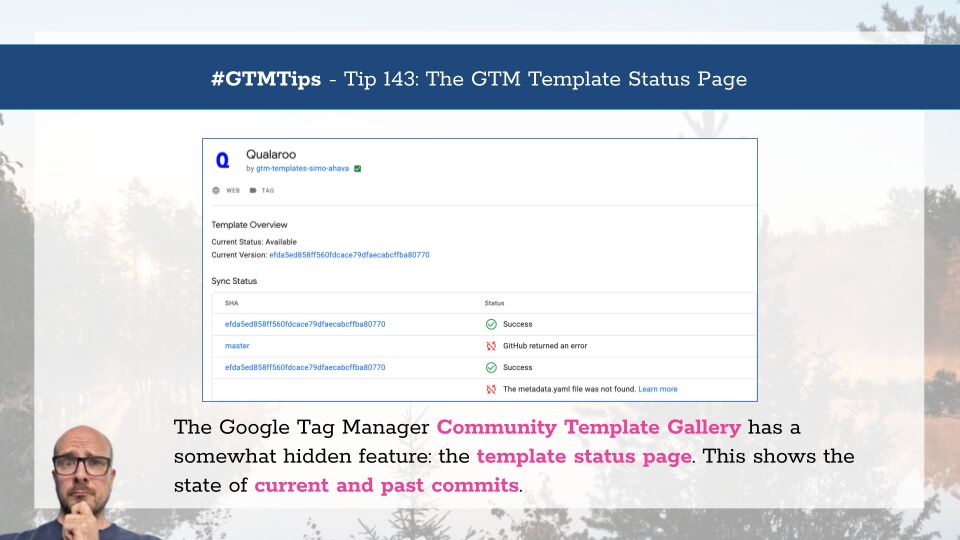
#GTMTips: The GTM Template Status Page

There’s a somewhat understated feature in the Google Tag Manager Community Template Gallery, which should certainly prove useful, especially to template authors.

The template status page shows a list of all the GitHub commits handled by the gallery importer, along with any associated errors that the template author should check, especially if there are noticeable problems with integrating the latest changes to the template in the gallery entry.

Tip 143: The status page

The easiest way to find the status page for any given template is to open the gallery (either via a GTM container’s Templates section or by browsing directly to the gallery), open the template you want to inspect, and then click the Status link in the sidebar:

  •  

#GTMTips: Split GA Events Between Client-Side And Server-Side Dispatch

Thanks to Giovani Ortolani Barbosa for reminding me about this possibility within Google Tag Manager and thus inspiring this blog post.

If you’re running server-side Google Tag Manager (SGTM), you’re probably sending your Google Analytics events directly to SGTM, where they are then forwarded to Google, Meta, LinkedIn, and any number of other vendor endpoints.

While doing so, you might have considered the possibility of only sending a part of the GA stream to SGTM, and having the rest go directly to Google’s CDN. Now, why would you consider this? Well, here are some reasons:

  •  

Google Tag Manager UI Updates

In preparation for the upcoming major integration between Google Tag and Google Tag Manager, Google has rolled out some user interface changes to your GTM containers.

The changes simplify the UI quite a bit, with the biggest changes landing on the Overview dashboard and the navigation.

In this article, I’ll take a look at the changes and I’ll also show what the new event editor / event builder for Google Ads Purchase conversions looks like.

  •  

Add IPv6 Support To Your Server-side GTM Load Balancer

UPDATED 20 March 2026: Shortly after publishing this article, Google Cloud changed how Load Balancer frontend certificate management works. Instead of directly mapping a frontend to a certificate, GCP now wants you to use a certificate map. Luckily, creating one is (fairly) simple, and I’ve updated the guide below to instruct how to do this.

If you’re running server-side Google Tag Manager on Google Cloud Run behind an External Application Load Balancer, your tagging endpoint is currently reachable only over IPv4 with a default installation.

  •  

Run Server-side Google Tag Manager On Localhost

Server-side Google Tag Manager is essentially a server application (running on Node.js), which Google has helpfully composed into a Docker image.

Docker, on the other hand, is an environment for creating, sharing, and running applications, right from the Docker platform itself.

In short, it’s a way to package an entire application and its execution environment, so that anyone (or any environment) can deploy a Docker container and instantly get the application up and running.

  •  

#GTMTips: How To Load Google Scripts From A Server Container

On June 30, 2025, Google announced that they are consolidating how Google’s script libraries for the web (e.g. gtm.js and gtag.js) are loaded when using a server-side Google Tag Manager container.

Before, you had the Web Container Client for loading the gtm.js file, and you had the Google Analytics 4 Client for loading the gtag.js file.

Now, you only use the former.

There is also the Google Tag Gateway option, which might be a better idea in case you really want to load Google’s scripts from a first-party context. Server-side Google Tag Manager isn’t necessarily the best content delivery option. Read more about the Google Tag Gateway here.

  •  

Common Mistakes When Working With Click Identifiers

This is a guest post by Jude Nwachukwu Onyejekwe. He is a prolific content creator, and he curates the DumbData portal, which is full of great, free resources for measurement enthusiasts.

In this article, he shares some useful learnings for working with click identifiers.

Click IDs are URL parameters used by ad platforms. They are attached to outgoing links (ad clicks), so that when the user lands on a website, the URL would include this identifier. Pixels and scripts that then run on the landing page can take this identifier and forward it to the vendor, who can then correlate behavior on the landing page with the ad that was clicked.

  •  

Basic Consent Mode: The Guide

Google’s Consent Mode is a way to control how tags react to the user’s consent for different tracking purposes. It is specifically designed to work with Google’s tags, but especially through Google Tag Manager, you can use Consent Mode’s features and APIs to control other tags, too.

Consent Mode comes in two “flavors”:

  • Advanced Consent Mode is specifically designed for Google’s products. Tags for GA4, Ads, and Floodlight are sensitive to the user’s consent choices and change their behavior accordingly. Advanced Consent Mode is very easy to implement because it basically requires no changes to tags’ existing triggering mechanisms.

  •  

Clarification On GTM Auto-Loading Google Tag For Ads And Floodlight Events

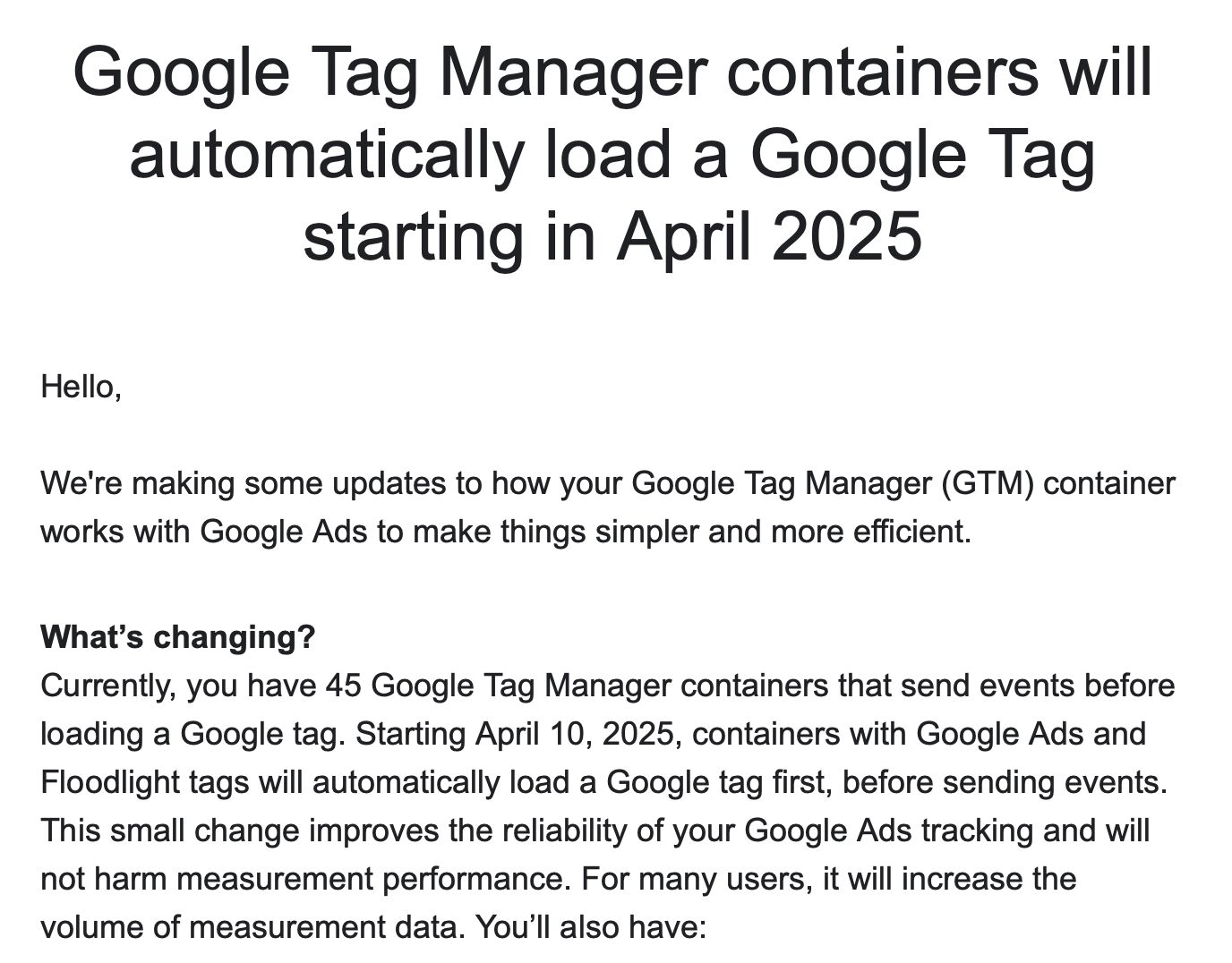
Google Tag Manager users received an email on March 11th, where Google announced a very cryptic update to Google Tag Manager:

As is typical with Google’s email communications, the email raised more questions than it answered.

Even though I tackled the email in a LinkedIn thread, there’s still a lot of misunderstanding (and misinformation) going about.

In this short article, I’ll explain what Google is going to do on April 10th.

  •  

#GTMTips: SGTM Fetches GA4 Configurations Automatically

One of the most popular use cases for server-side Google Tag Manager, often shared on this blog, too, is to split an incoming stream into multiple different endpoints.

Since the demise of customTask for Universal Analytics (Rest In Peace!), there hasn’t really been a solid, officially supported way of splitting a single GA4 stream into multiple endpoints. This is useful in case you want to create a “global rollup” property that combines data from multiple local sites, for example.

  •  

#GTMTips: Quickly Duplicate Tags In Google Tag Manager

There are many reasons why you might want to duplicate your tags (or triggers, or variables, or templates) in Google Tag Manager.

One prime example is server-side tagging, where it’s sensible to first build and validate your tracking setup before migrating fully to a server-side approach.

Alternatively, you might want to collect analytics data to a second property, for example when you want to have a local and a global dataset for site visit data.

  •  

Cookie Access With Shopify Checkout And SGTM

In this guide, I’ll show you how to add first-party cookie values client-side, which your server-side Google Tag Manager processes can then access.

You might be wondering: “Why bother?”. After all, if server-side GTM is running same-site with the website sending the requests, why can’t it just read the cookies on its own, right?

Well, true. But there are cases where the website and web server seem to be same-site but are in fact not. One such case is Shopify’s Checkout Extensibility.

  •  

GA4 to Piwik PRO Using Server-side Google Tag Manager

There are two new custom templates available in server-side Google Tag Manager. These templates have been designed to facilitate Piwik PRO tracking in a server-side container.

  1. Piwik PRO Client -> This Client template interacts with the Piwik PRO JavaScript tracker and lets you route Piwik PRO tracking through a server-side GTM container. GitHub repo.
  2. Piwik PRO -> The tag template works in unison with the Piwik PRO Client, forwarding the hits to the Piwik PRO endpoint. GitHub repo.

Read this article to learn more about how these templates work.

  •  

New Piwik PRO Templates In Server-side Google Tag Manager

Piwik PRO has two new server-side Google Tag Manager templates, and this article explains what they are and how they work.

The first template, Piwik PRO Client, is designed to work in unison with the Piwik PRO HTTP API. Most often these requests are generated by the Piwik PRO JavaScript tracker, but theoretically any HTTP source that uses the same schema can send requests for the Client to claim. Once the Client claims the request, it generates an event data object that can be consumed by tags in the server-side Google Tag Manager container.

  •  

First-Party Mode For Google Tags

Google has released a new feature, First-Party Mode (FPM), into public beta.

Image source

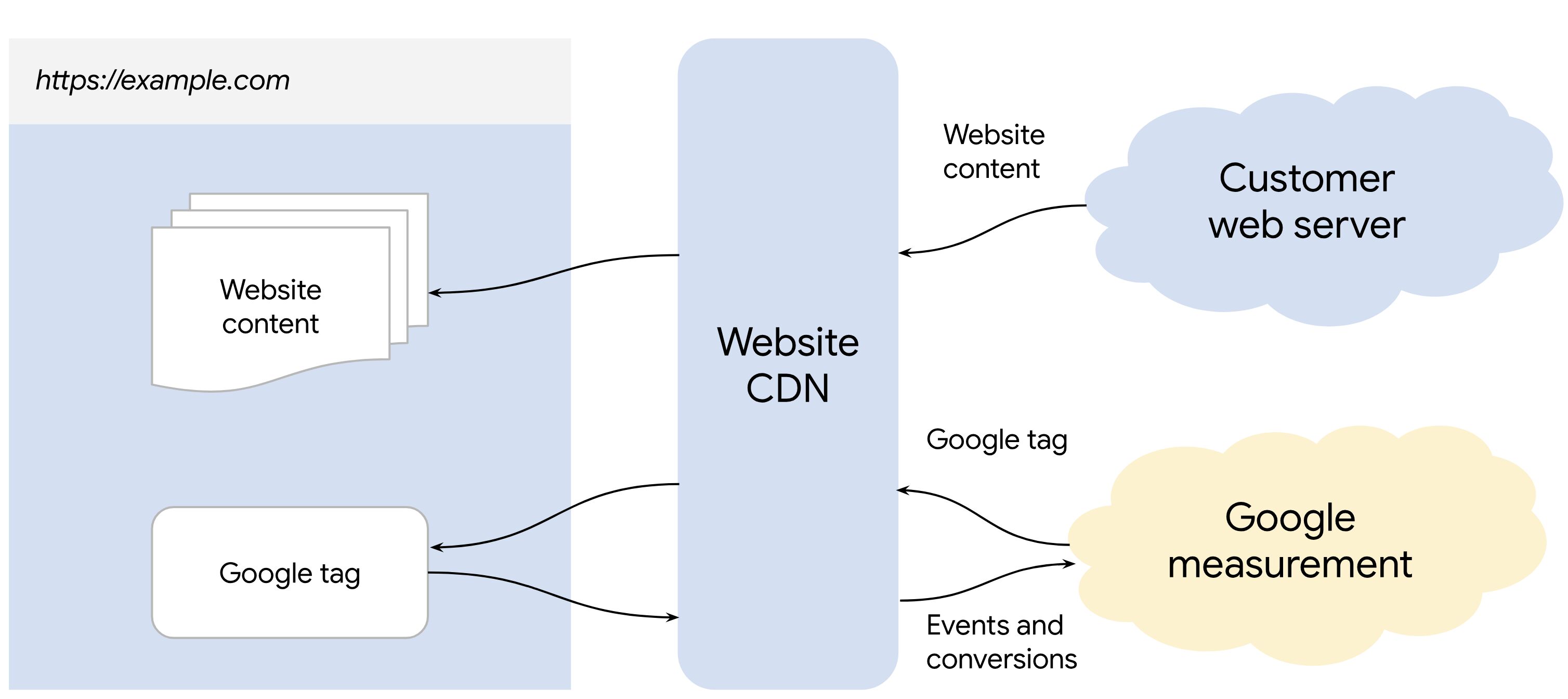
First-Party Mode seeks to make it easier to wrap Google’s measurement and advertising technologies in a first-party, same-origin context.

This means that the user’s browser, when visiting a website running FPM, would no longer communicate directly with Google’s domains when fetching measurement libraries such as Google Tag or Google Tag Manager.

  •  

#GTMTips: Automatic Page View Hits In SGTM After Consent Granted

If you’re using server-side Google Tag Manager, Google (Advanced) Consent Mode and you’re collecting hits to Google Analytics 4, you might have noticed something odd happening when switching consent to granted state.

It looks as if your page_view hits as well as any other hits marked as “Conversions” (or key events now, I guess) are automatically redispatched to the server-side Google Tag Manager endpoint when consent is granted!

This sounds incredibly useful. You no longer need to reconfigure the dispatch of important events after consent is granted.

  •  

#GTMTips: Consent Granted Reprocesses Previously Denied Hits

This will be a quick tip, but it’s here to correct my previous statements in the comments section of different articles on this blog.

When using Advanced Consent Mode, Google Analytics 4 collects hits when consent is in "denied" state. These hits have a lot of parameters stripped off them, including identifiers like the Client ID and the Session ID.

The hits will not surface in reports directly, but they will instead go through a modeling process to enrich the reports once modeled.

  •  

The Technical Marketing Handbook By Simmer

Simmer has just released the Technical Marketing Handbook.

It’s a free online resource, formatted as a mini-course, designed to walk the reader through the different disciplines and concepts that fall under the banner of “technical marketing”. And yes, we spend the introductory chapter explaining what that term means to us.

In total, we wrote 9 chapters, each with 3 topics, for a total of around 77,000 words. For reference, that’s about as many words as in the first Harry Potter novel.

  •  
❌